Smart home routines are made for making life a little easier. Setting your whole house in motion with just one command or trigger, it is possible with routines. Google's smart home platform already has a number of standard routines ready for you. In addition, you can easily design your personal routines. We take you step by step through setting up such a routine.
Of course, to create your own routines, the first thing you need is the Google Home app. You can download this from the Google Play Store, or App Store for iOS users. Once you have selected your account, you are ready to start your Routines. To do this, click on your profile at the top right. Next, continue by clicking on the 'settings for Assistant' heading. You will then see your Google Home Routines settings here. Here you will see the pre-set Routines from Google Home itself. Feel free to take a look through here.
Google also has its own smart hub. The Google Nest Hub is a touchscreen smart station where you have the complete overview of your Google Home. You can also set and adjust your Google Home Routines on it.
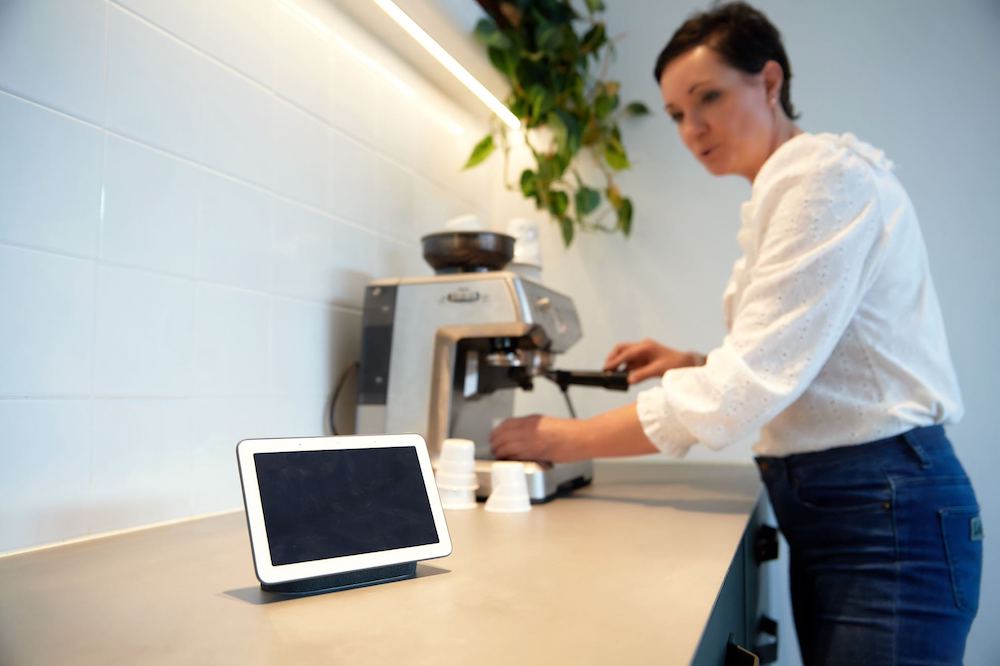
If you want to connect your devices to your Google Home and add them to your routines, your device must of course be compatible with Google Home. So when purchasing smart home devices, make sure that the device can be connected to your smart home platform. Once you have the right devices at home, you can start creating your personal routines for Google Home. We will guide you through the process step by step:
Go to “Automations” in your Google Home app and click + Add.
Select the “Personal” option.
Here you can set up your routine. When creating routines (e.g., Good morning) with Eve Motionblinds in Google Home, you will need to set the “Starters” (e.g., 1 hour before sunrise) and the “Actions” (e.g., set Eve Motionblinds to 68%).
Under “Add starter”, choose how this routine should be triggered.
Under “Add action”, choose the option “Try adding your own”.
You will need to enter a specific action for Eve Motionblinds here. It might seem more logical to choose “Adjust smart home devices”, but this does not work for Eve Motionblinds in Google Home yet.
For a TDBU honeycomb blind, you must add multiple actions in Google Home because both the top rail and the bottom rail are controlled separately. Use the names you assigned to both motors.
Example:
Open office
– Set [Office bottom rail] to 75%
– Set [Office top rail] to 25%
Close office
– Set [Office bottom rail] to 100%
– Set [Office top rail] to 0%
Here, [Office bottom rail] and [Office top rail] refer to the names as configured in the Google Home app.

Now that you've set up your first Google Home routine, you can keep expanding or adjusting your routines. That way, you will gradually ensure that your home turns into an automated home. An automated home offers many advantages. A house that is always moving deters burglars. This is because they think someone is always at home. In addition, smart home devices can collectively reduce energy bills. Great for you and the environment! Read more about saving energy with your smart home!
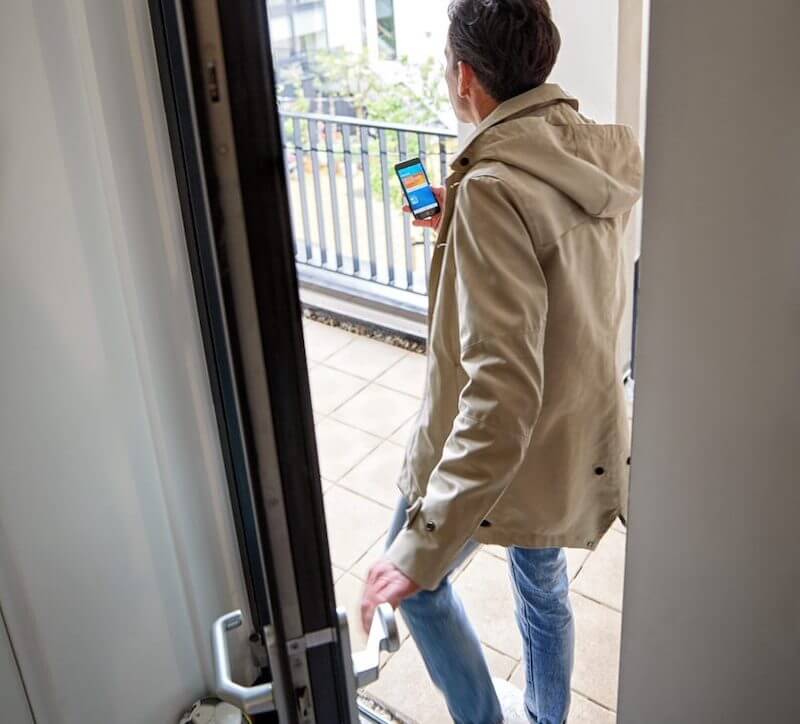
Automations allow you to control multiple smart devices with a single trigger, create timed or voice-activated behaviors, and enhance convenience, energy efficiency and overall home comfort. This includes making Smartblinds act automatically at specific times or under set conditions.
In the Google Home app, open the Automations section, choose to add a new routine, set a trigger (such as time or voice command), then add actions that control your Smartblinds and other devices.
Routines can start based on timers, sunrise/sunset, specific voice commands, and other event triggers supported by the Google Home ecosystem.
Yes, Smartblinds can be part of broader routines that include lights, thermostats and other compatible smart devices, letting them interact together based on a single automated setup.
You can activate a routine with a simple voice command through Google Assistant. Once triggered, the routine can carry out pre-set actions like opening or closing your Smartblinds automatically.