
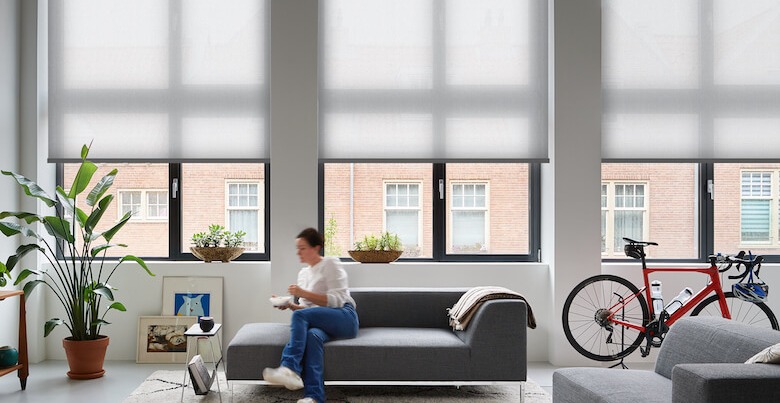
Google Home is one of the most popular smart home systems worldwide. For many people, smart home apps and connected devices can feel complicated and overwhelming. That’s why Smartblinds explains all the basic steps you need to successfully use Google Home. In this article, we guide you step by step on how to add your smart home devices to the Google Home app. This way, you can install your Smartblinds and other smart devices without running into problems.
To connect your smart home device to Google Home, you need a device that is compatible with Google Home and supports Matter. But how do you know if your device can be connected?
When a smart home device works with Google Home, this is usually indicated on the packaging or in the product specifications. Devices that support Matter can be added directly to Google Home using a setup QR code. Once you have the compatible devices ready, you can start adding them to your Google Home app.
If you want to start connecting your device to your Google smart home, you first need to download the Google Home app on your smartphone. The app is available for both Android and iOS devices. Make sure your home has a strong and stable Wi-Fi network, as this ensures a faster and smoother installation process. Ready to add your first device? Follow the steps below!
Open the Google Home app on your smartphone.
Tap the '+' button at the top of your screen and choose the option 'Set up device'. Then select 'New device' to start adding your smart accessory.
Select the home where you want to add your device. Scan the Matter setup QR code on your smart device. If scanning does not work, you can manually enter the setup code.
After scanning the QR code, your device will appear on your screen. Confirm the connection to your Google Home and wait until the pairing process is completed.
Give your device a clear nickname and assign it to a room. This keeps your smart home organised and makes it easier to create routines and automations later.
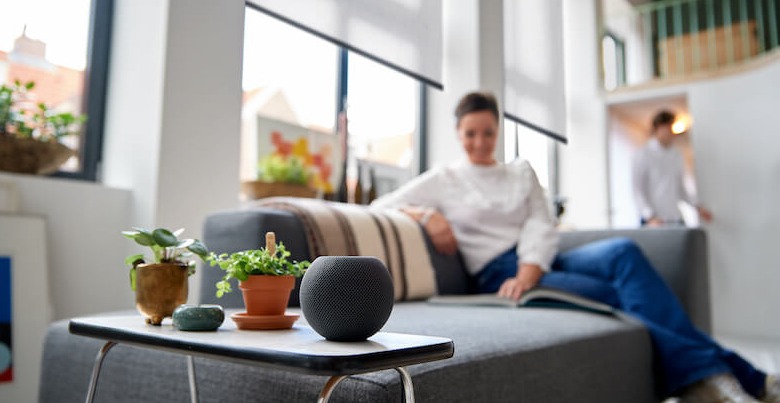
Have you successfully added your first device to Google Home? Then it’s time to expand your smart home experience. With a Google Nest speaker or display, you can control your Smartblinds and other devices using voice commands. It’s also possible to link routines to a specific voice command. For example, with the command “Good morning,” your lights can slowly turn on while your Smartblinds open automatically. Add a Smartblind to your room and enjoy the complete smart home wake-up experience!
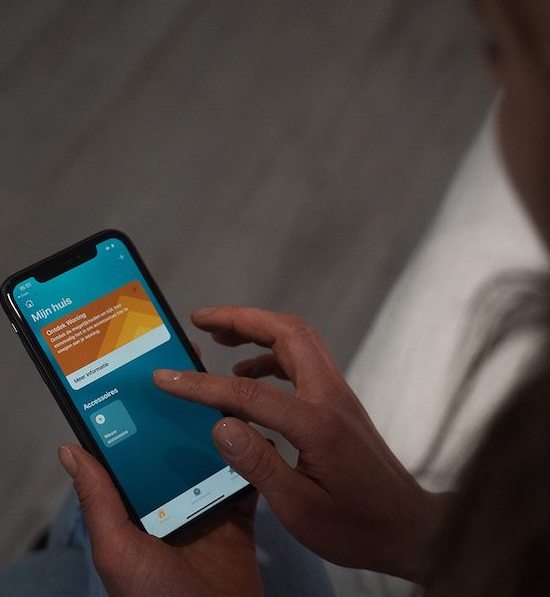
To integrate your Smartblinds with Google Home, you need a smart hub that supports Matter and Thread protocols, such as Google Nest Hub (2nd generation), Nest Hub Max, or Nest Wifi Pro. Other Thread-enabled routers and smart hubs may also work for seamless smart home automation.
Once your Smartblinds are connected, you can add them to Google Home routines or automations. This allows your blinds to open or close automatically based on time schedules, sunrise/sunset, or triggers from other smart home devices, giving you full hands-free control.
If your blinds are not recognized in Google Home, try these troubleshooting steps: rename, remove, and re-add the Smartblinds in the app; update the Google Home app; or restart your blinds’ bridge or gateway. These steps help ensure device connectivity and proper voice control functionality.
Some blinds or gateways show up as a generic switch instead of a dedicated blinds device. Correctly assigning the device type and name ensures proper voice commands and automation, so you can control your blinds intuitively.
Yes! By grouping your blinds in the same room or group within Google Home, you can use voice control commands like “Hey Google, close all blinds downstairs.” This feature is ideal for automating multiple blinds and creating a fully smart home window control system.